How to Create a Print Personalization in Bespo?
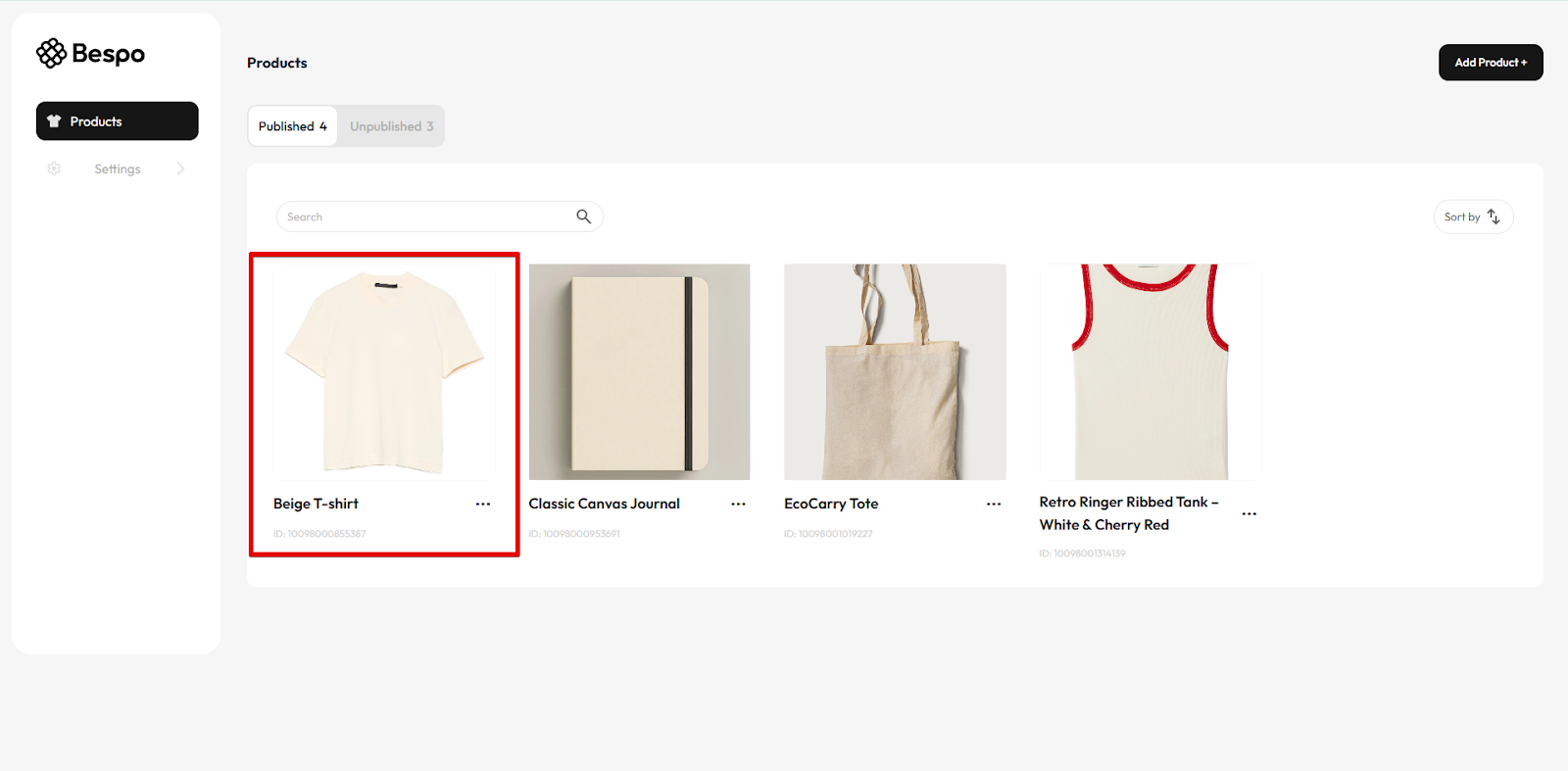
1) Open the product in Bespo
From Products, click the product you want to personalize.
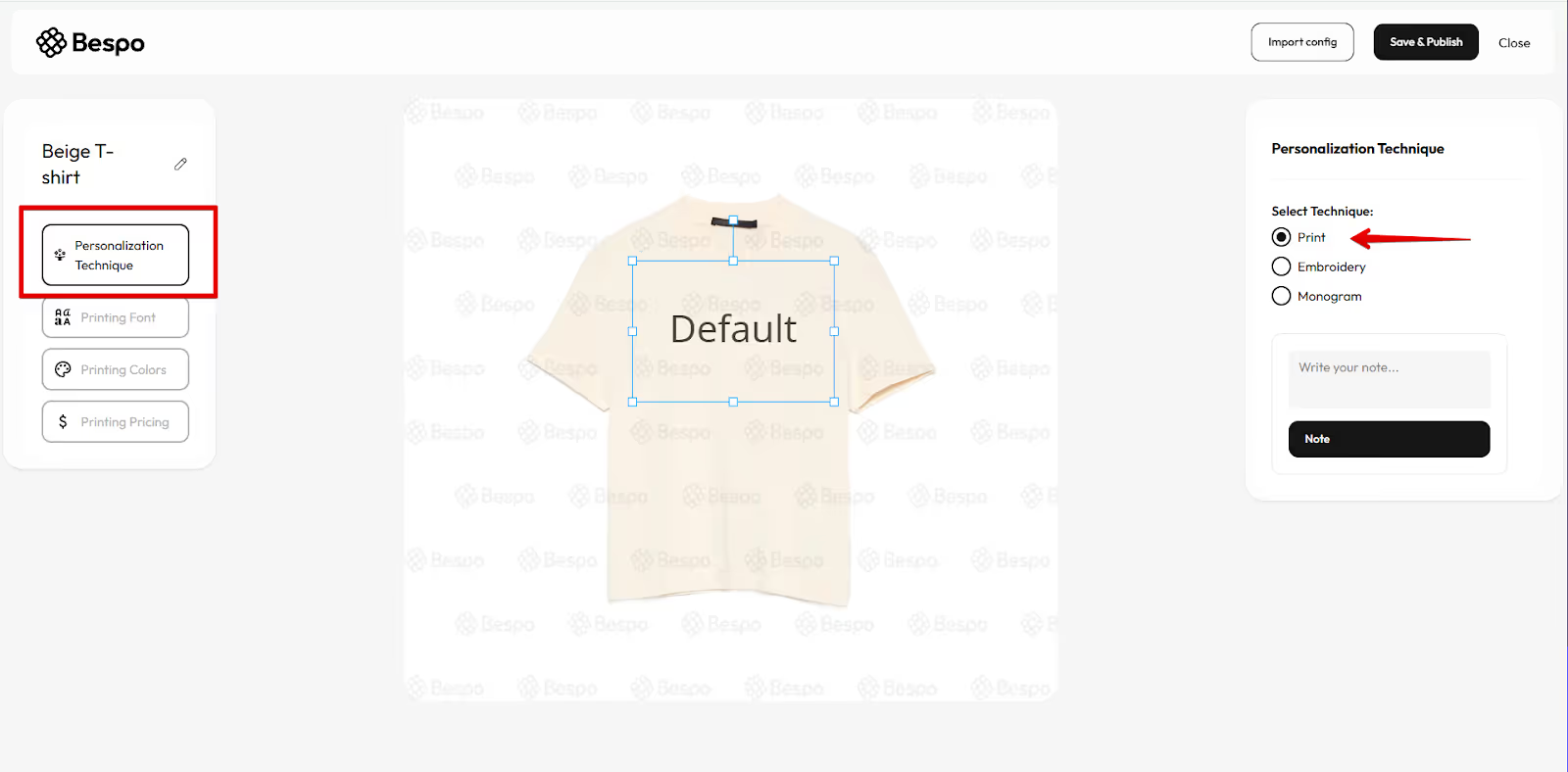
2) Choose the Print technique
Click Personalization Technique on the left, then select Print on the right.
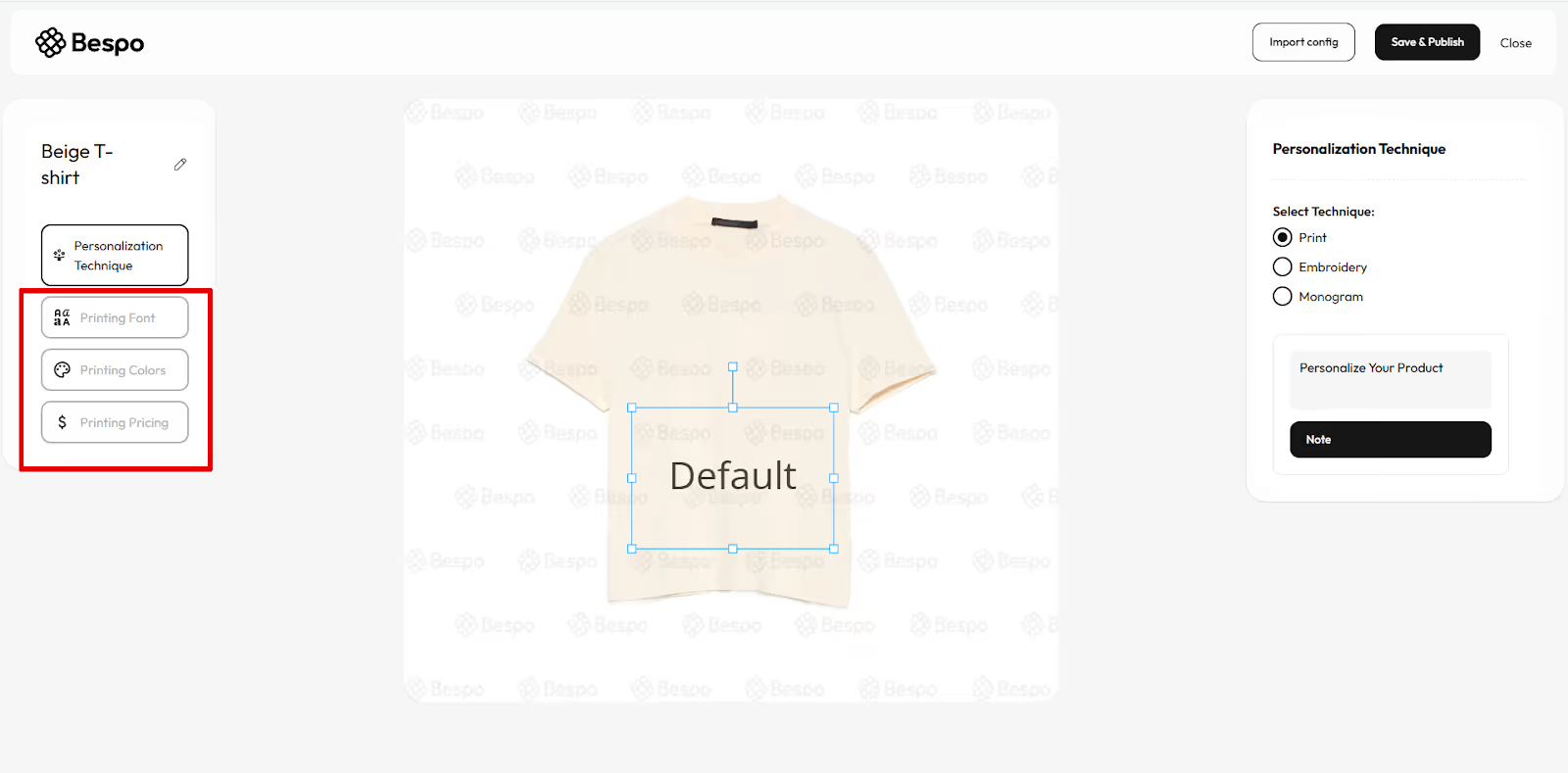
3) Open Printing Font
Click Printing Font in the left panel to configure the text settings.
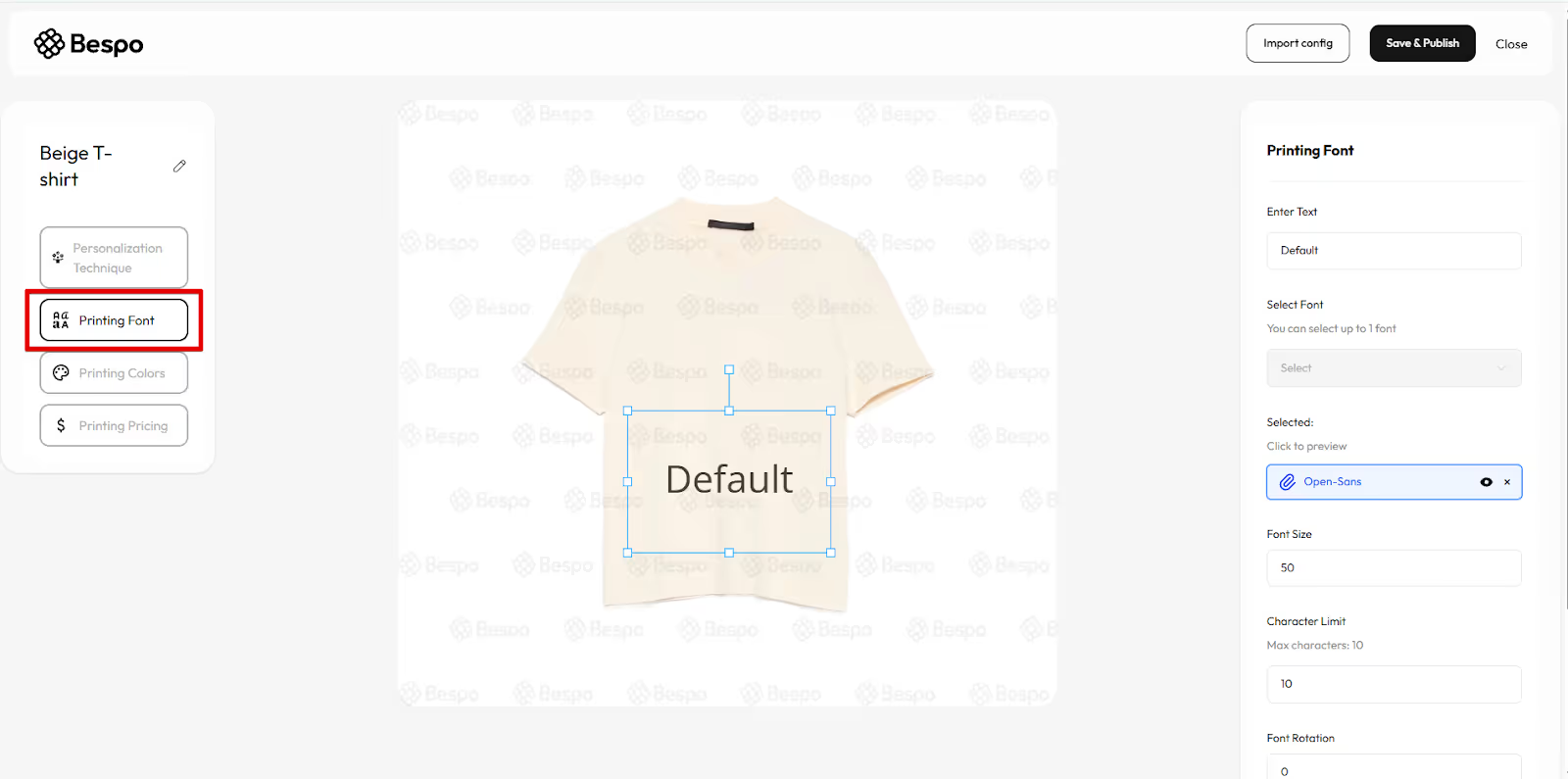
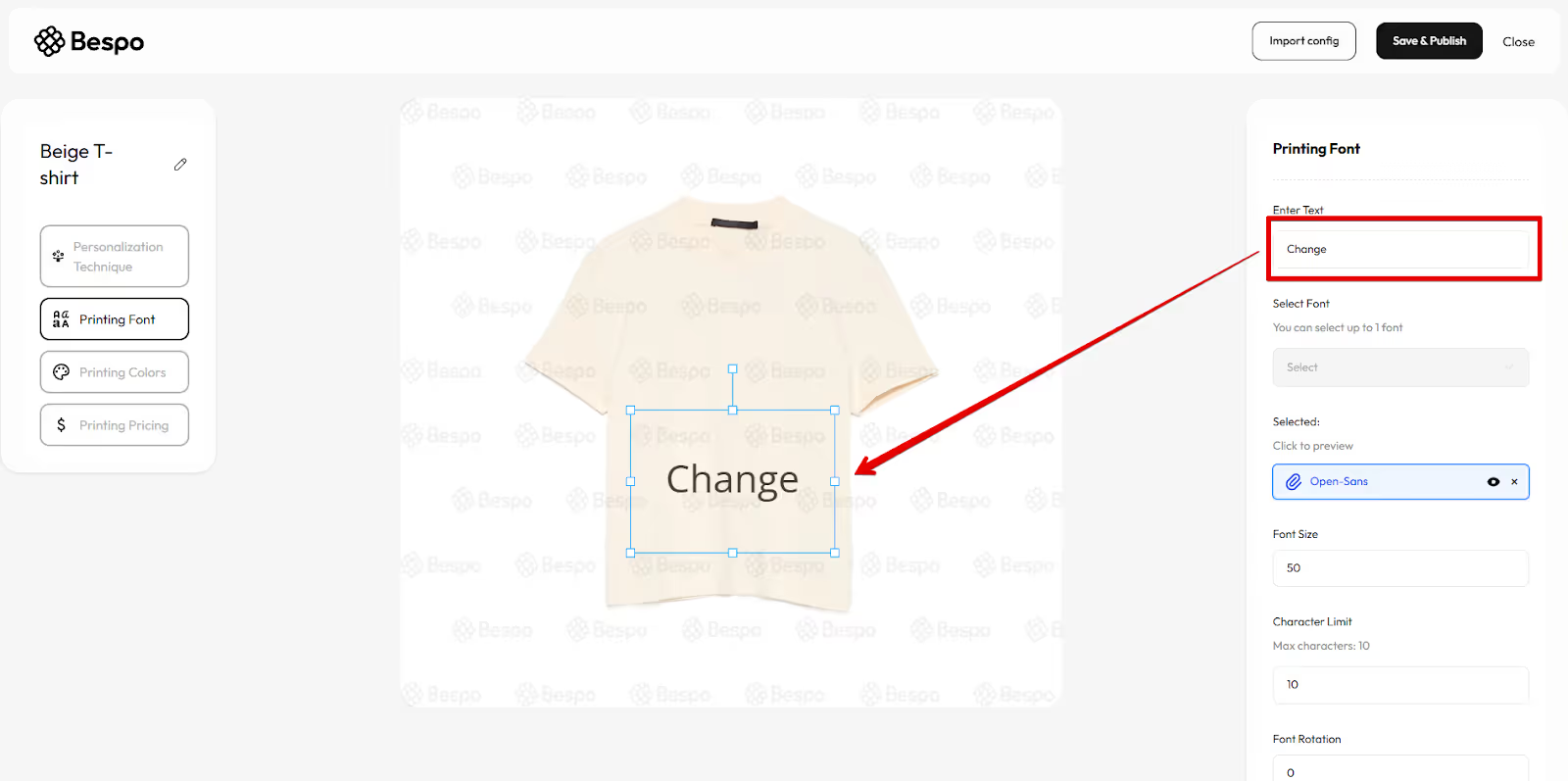
4) Enter sample text
Type your sample text in Enter Text to see the live preview update on the product.
5) Set font options
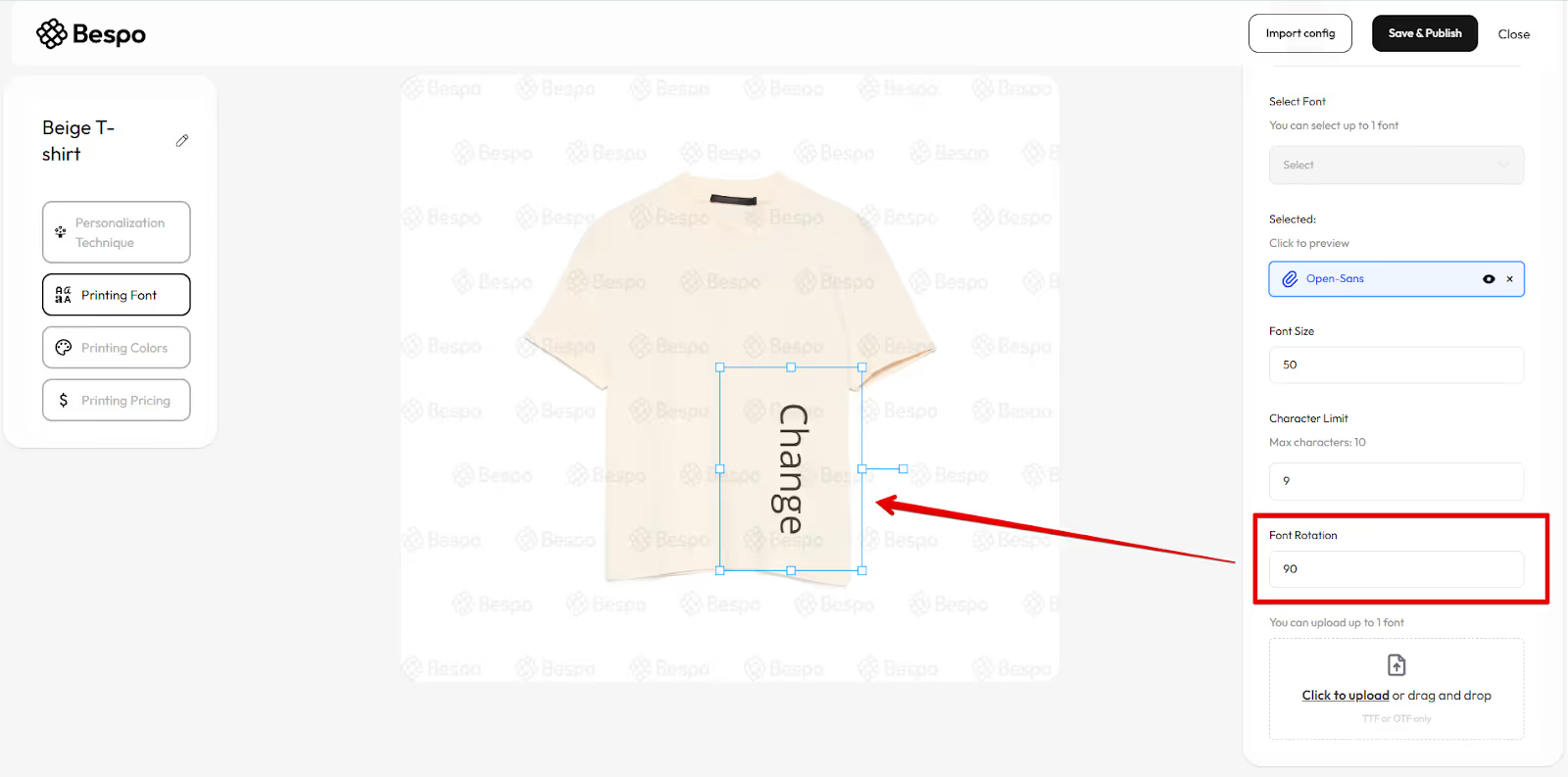
In Printing Font, adjust:
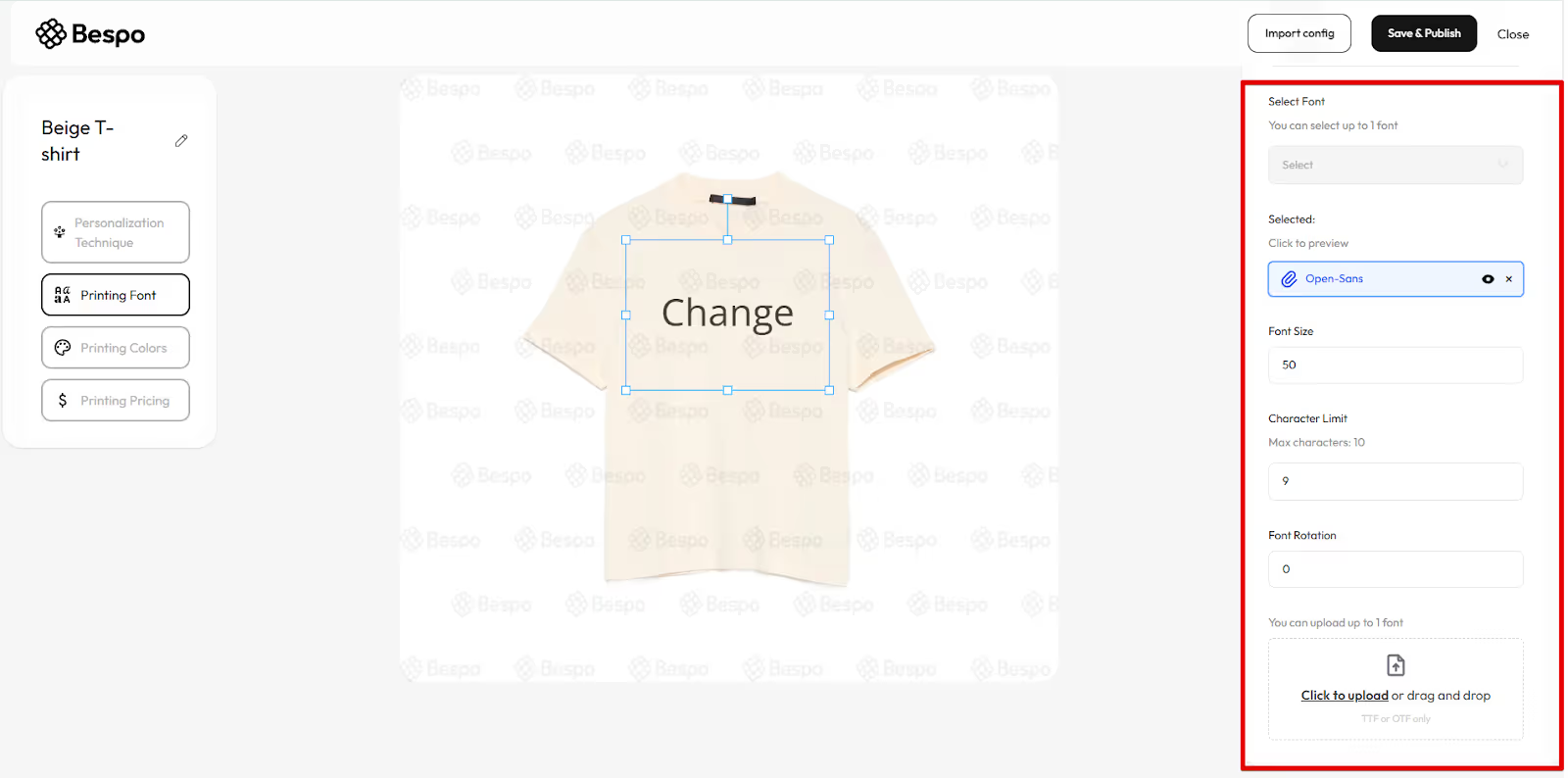
- Select Font (or upload a font if enabled)
- Font Size
- Character Limit (max characters customers can enter)
- Font Rotation (optional)
6) Choose print colors
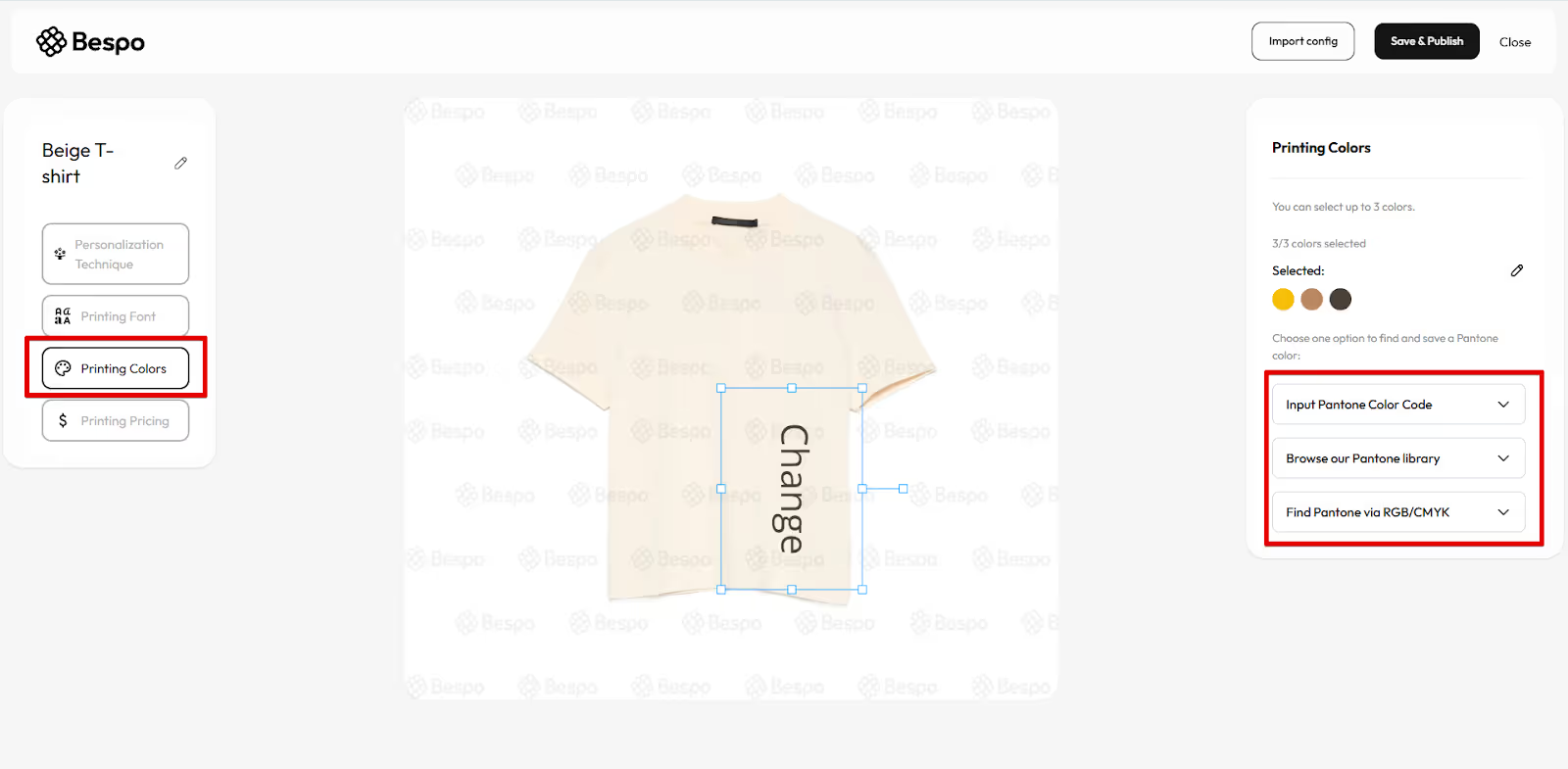
Click Printing Colors in the left panel. Use one of the tools to pick your brand color(s):
- Input Pantone Color Code
- Browse our Pantone library
- Find Pantone via RGB/CMYK
7) Set pricing
Click Printing Pricing in the left panel. Choose one pricing method:
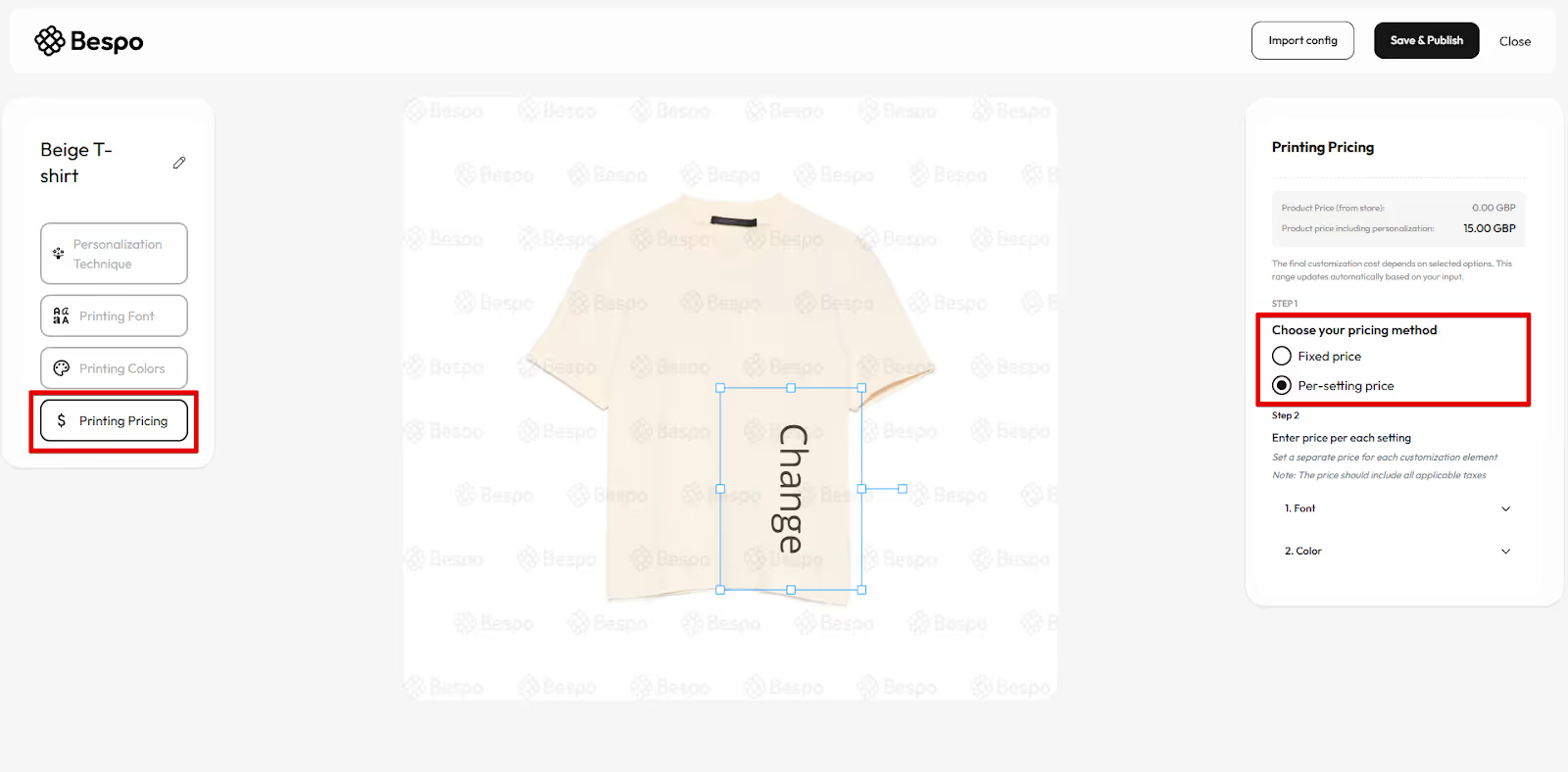
Fixed price is used when you want to set a single price for all print personalizations.
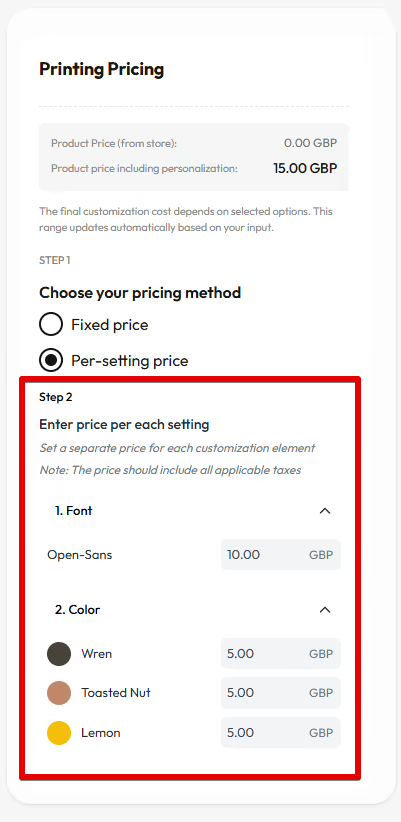
Per-setting price is used to set different prices per Font or Color (e.g., metallic ink) and prices should include applicable taxes.
8) Save & publish
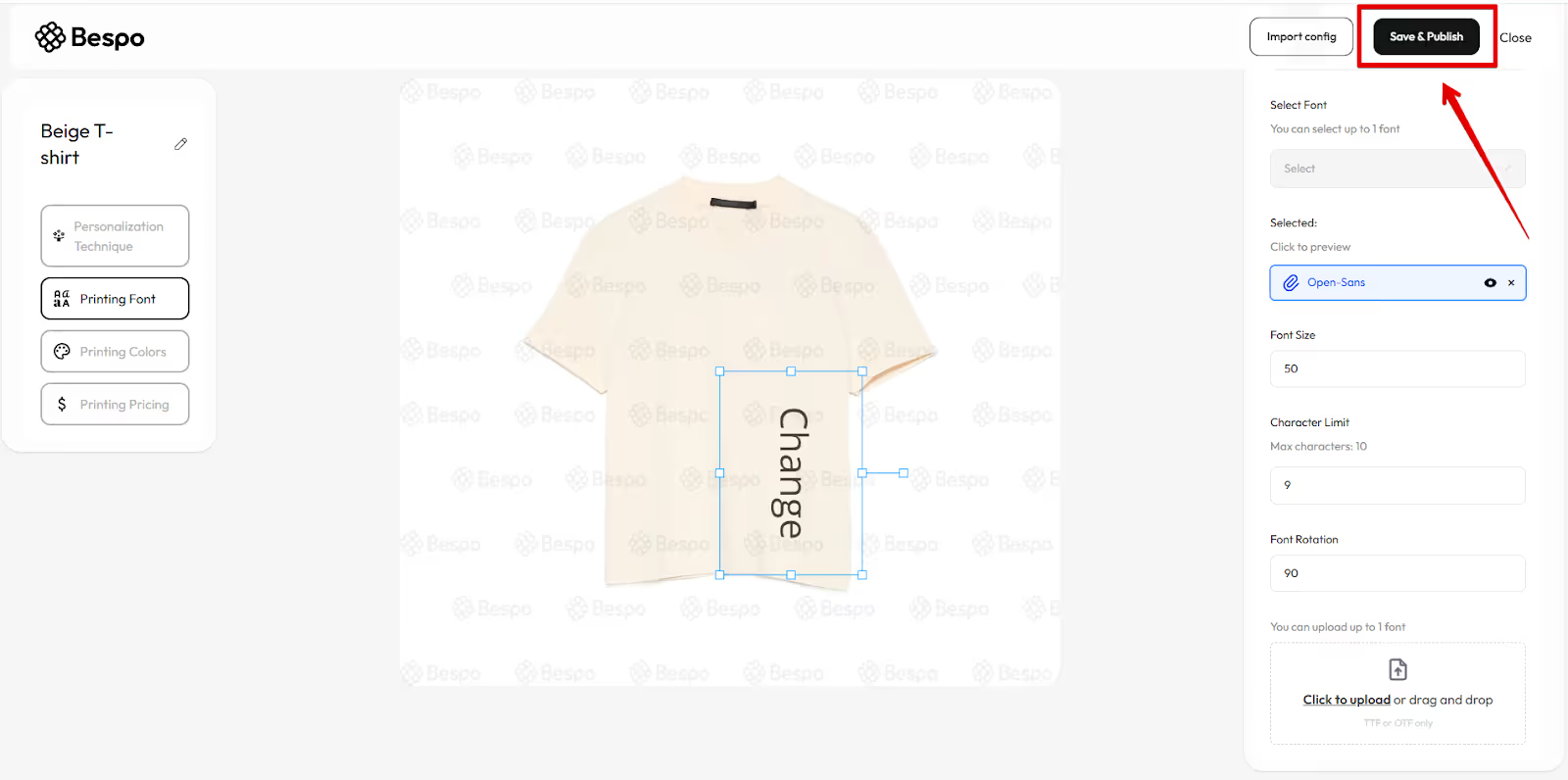
Click Save & Publish in the top-right to make this print personalization live on your store.
Tips
- If text looks too big/small, adjust Font Size or resize the blue bounding box.
- If a color doesn’t show, confirm it’s selected under Selected in Printing Colors.
To change later, reopen the product in Bespo, update settings, then Save & Publish again.