How to Get Bespo Product Personalization to Show on Your Shopify Store?
Before you start:
- Bespo is installed, and you’ve added at least one product in Bespo.
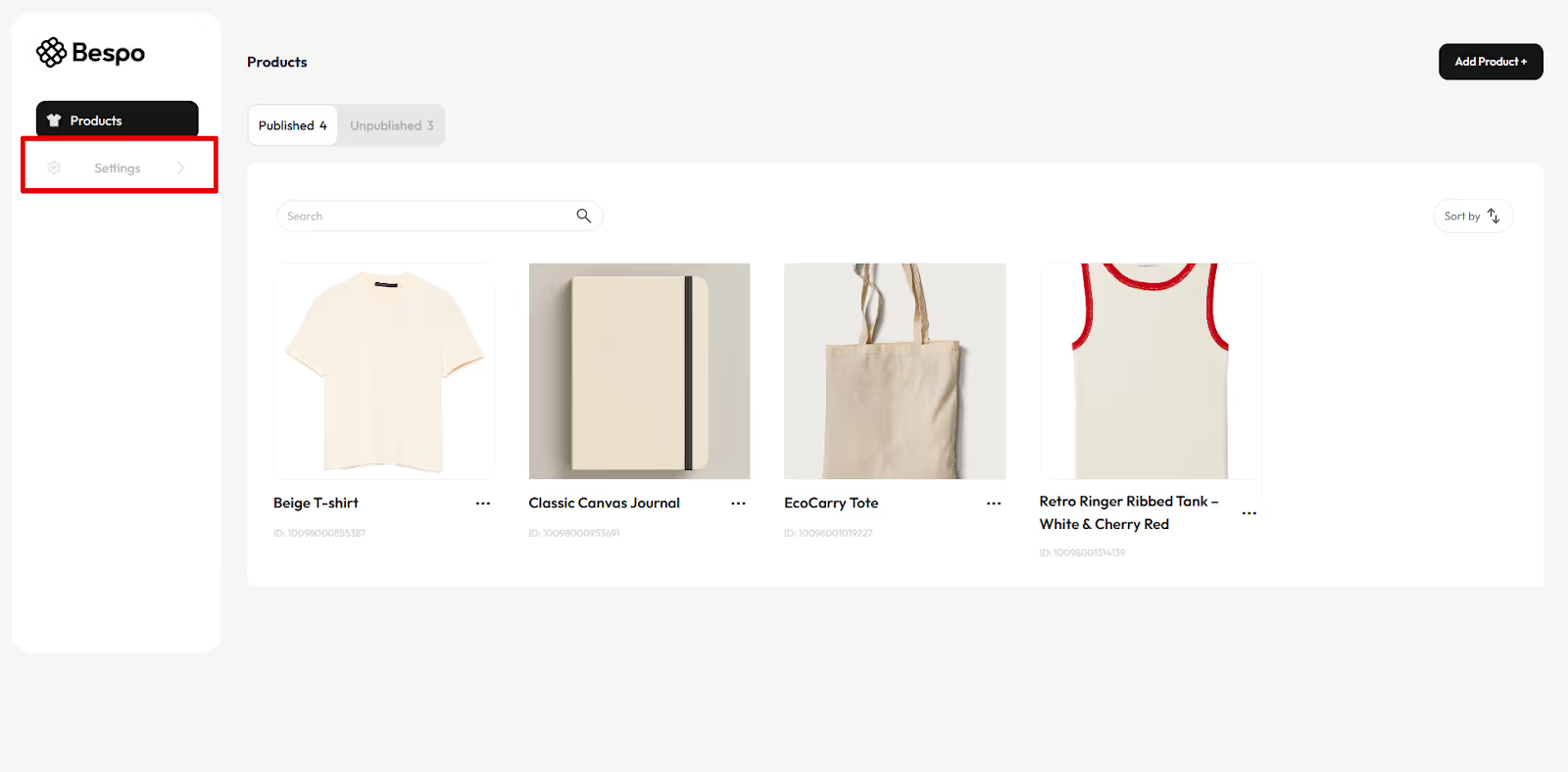
1) Open Settings in Bespo
In Bespo, click Settings in the left sidebar.
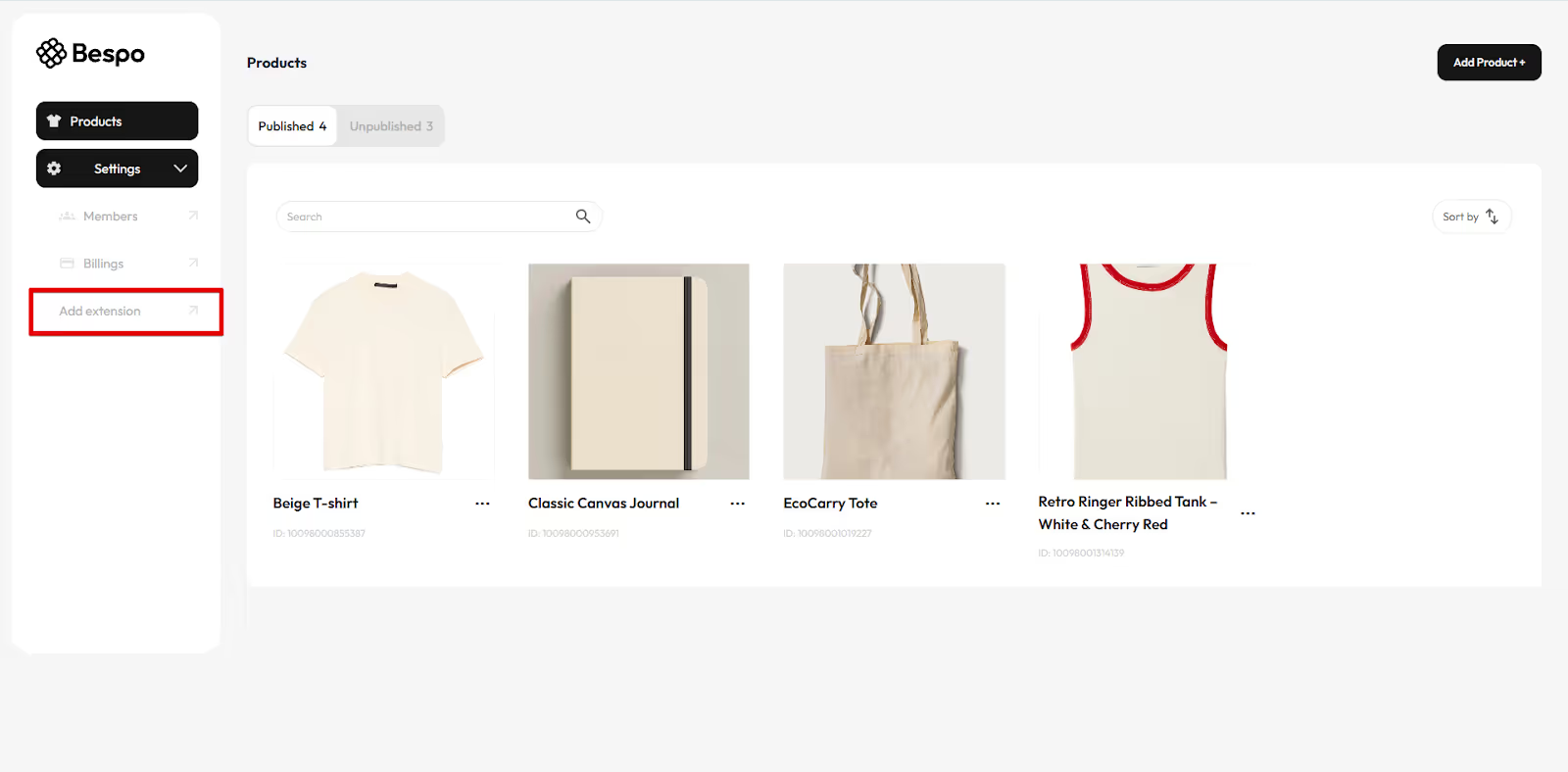
2) Click Add extension
Still in Settings, click Add extension to open Shopify’s theme editor for your product template.
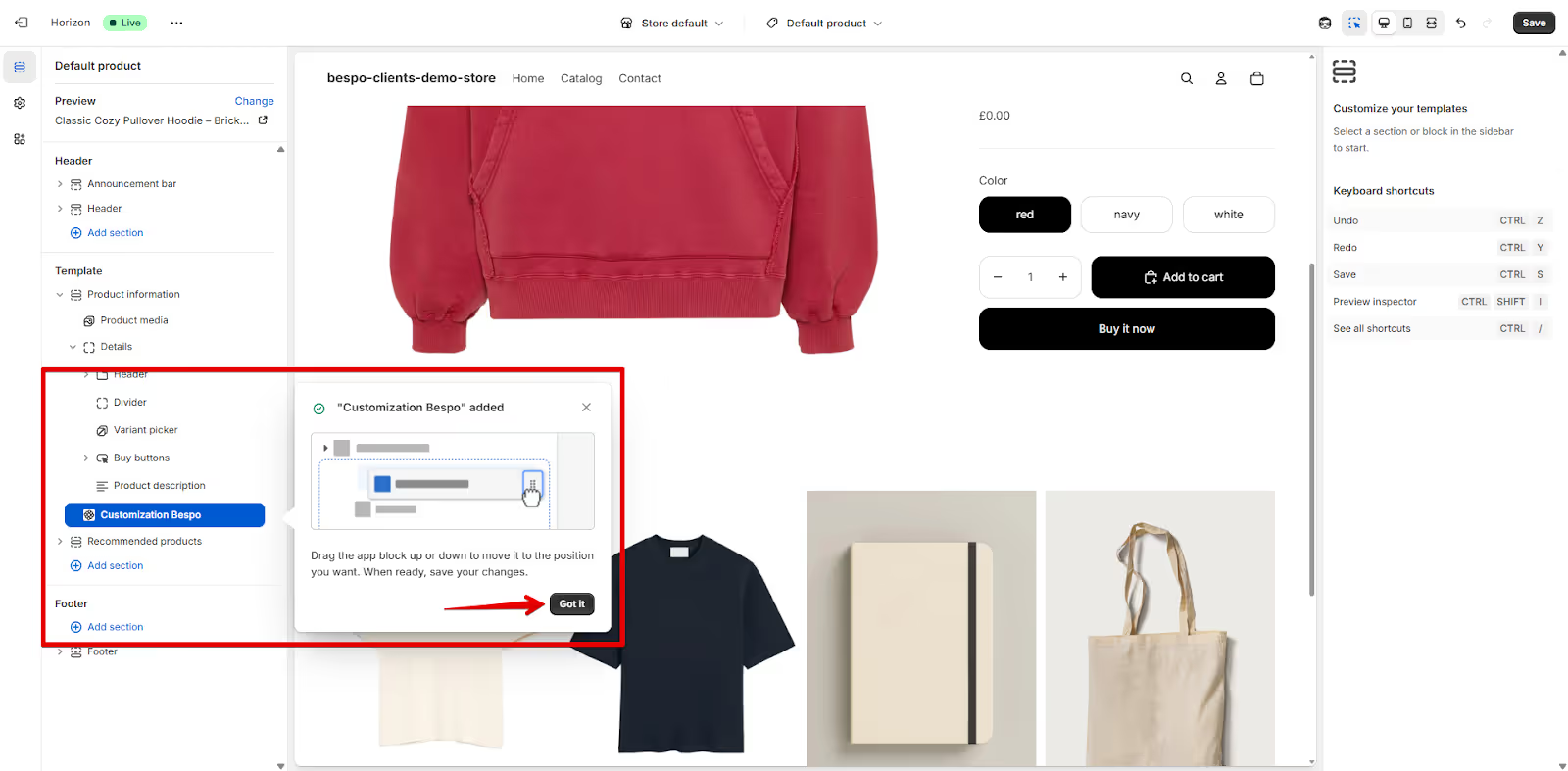
3) Confirm the app block was added
In the Shopify theme editor, you’ll see a confirmation that “Customization Bespo” added. Click Got it.
- If you don’t see it, add it manually: in the left sections panel, click Add block → Apps → Customization Bespo.
- Drag Customization Bespo to the spot you want (typically above Buy buttons or just below Variant picker) so shoppers notice it.
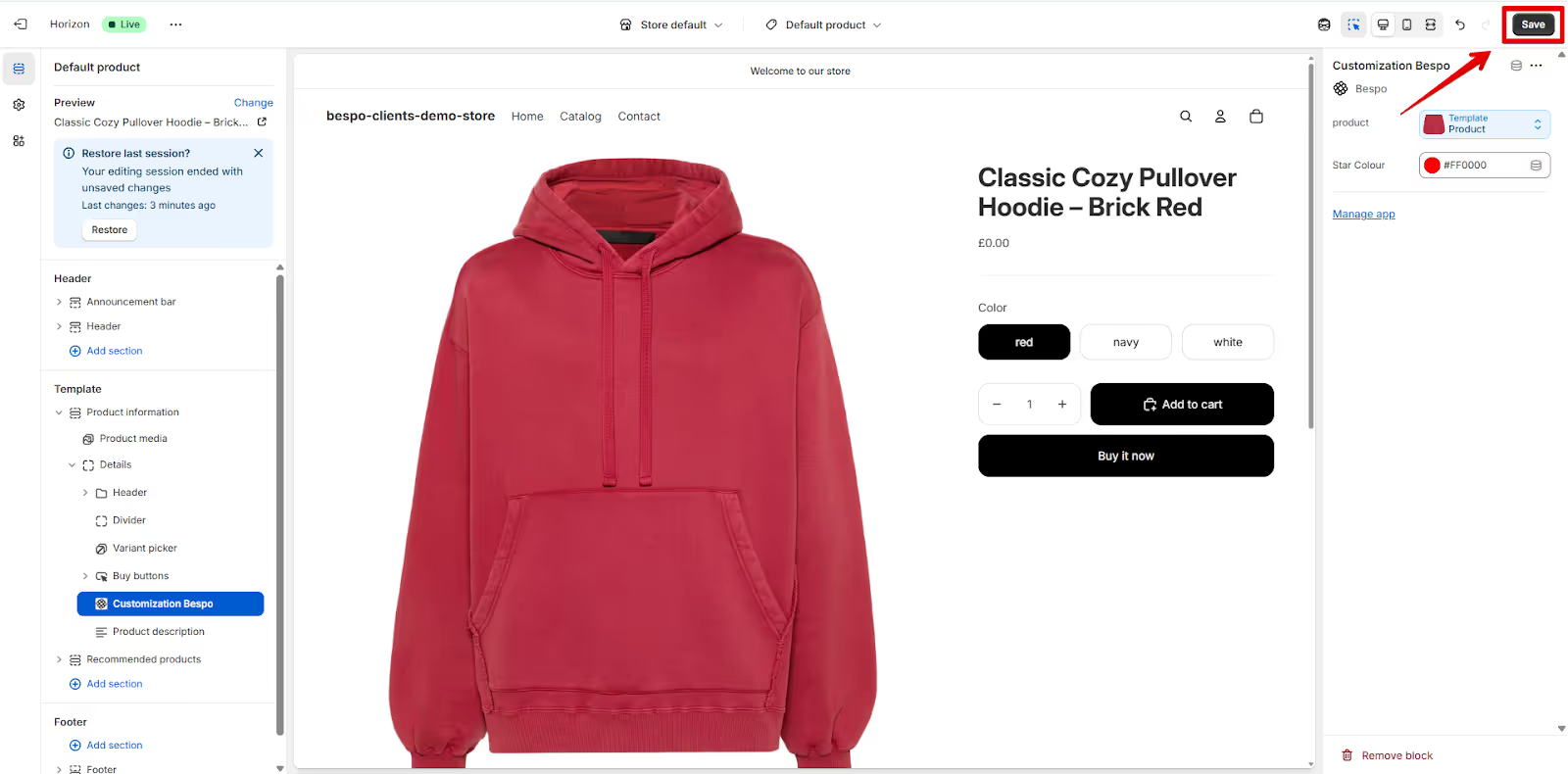
4) Click Save
In the top-right of the theme editor, click Save to publish the change.
5) Verify on your storefront
Open any product you configured in Bespo. You should now see the Customization Bespo area on the product page with your personalization options.
Quick troubleshooting
- Don’t see the Bespo block? Add it manually via Add Section → Apps → Customization Bespo, then Save.
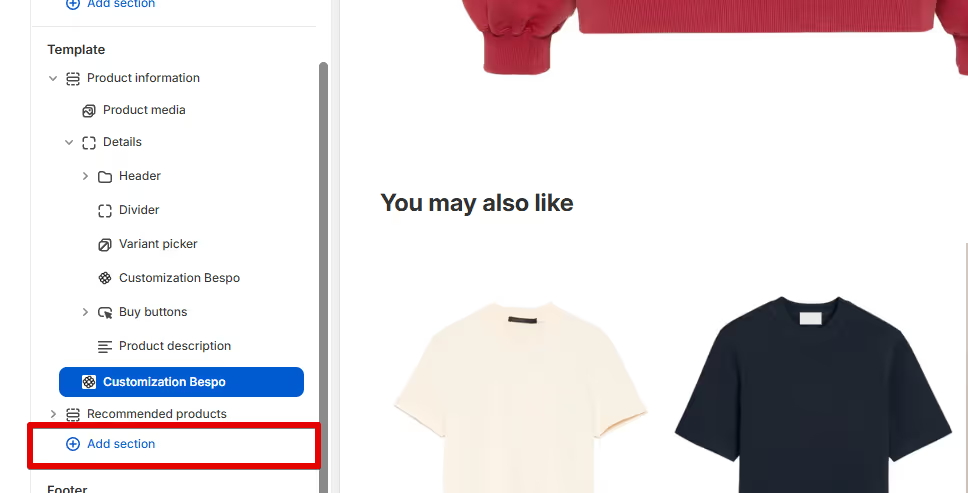
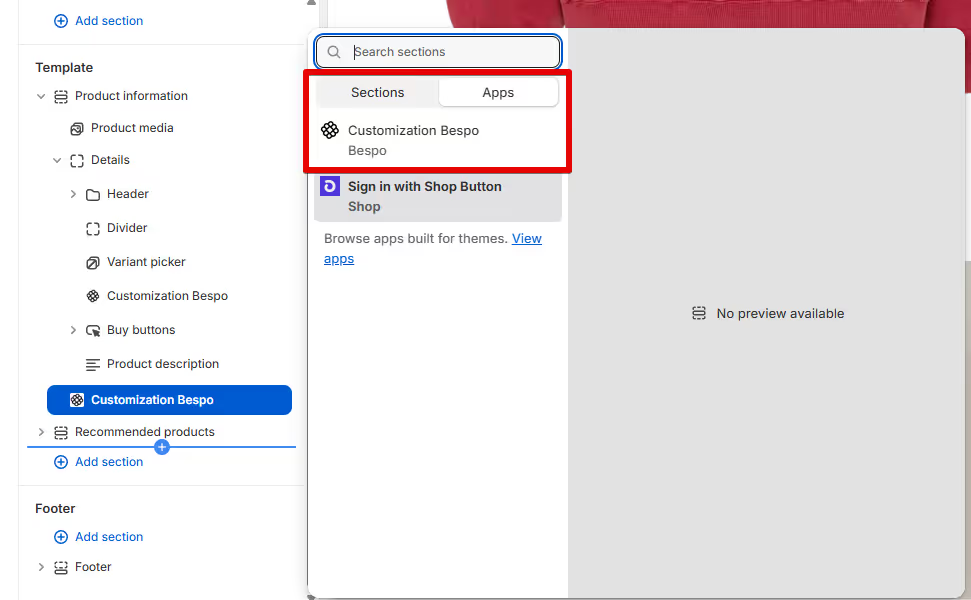
- Block added but not visible live? Make sure you edited the correct product template (check the template name at the top of the editor) and clicked Save.
- Wrong position on the page? In the left panel, drag Customization Bespo higher/lower in the Product information section, then Save.
- Nothing shows for some products? Confirm those products are Published in Bespo and the same template is assigned to them in Shopify.